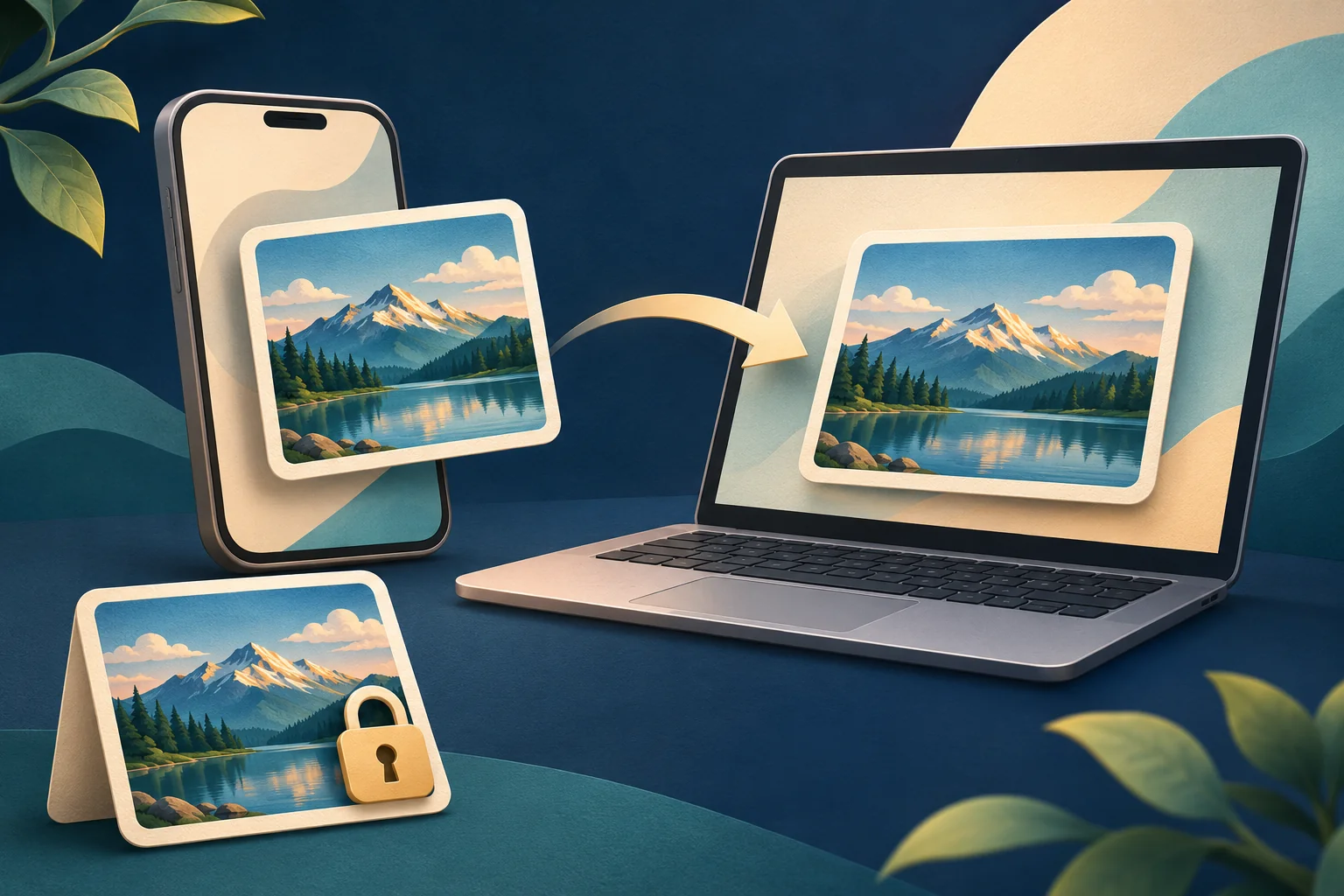
To convert HEIC to JPG on Windows 11, try opening the photo in Paint and saving a new copy as JPEG. For a folder of photos, use a local batch converter. If your pictures are already in iCloud Photos, you can download compatible JPEG copies through your browser.
Keep the HEIC originals. A normal JPG export uses lossy compression, so “without losing quality” cannot mean preserving every bit of image information. The useful goal is full resolution and no distracting visible change.
Research checked: 7 November 2026. This is a desk-researched guide, not a hands-on converter test. Menu wording can vary by app version.
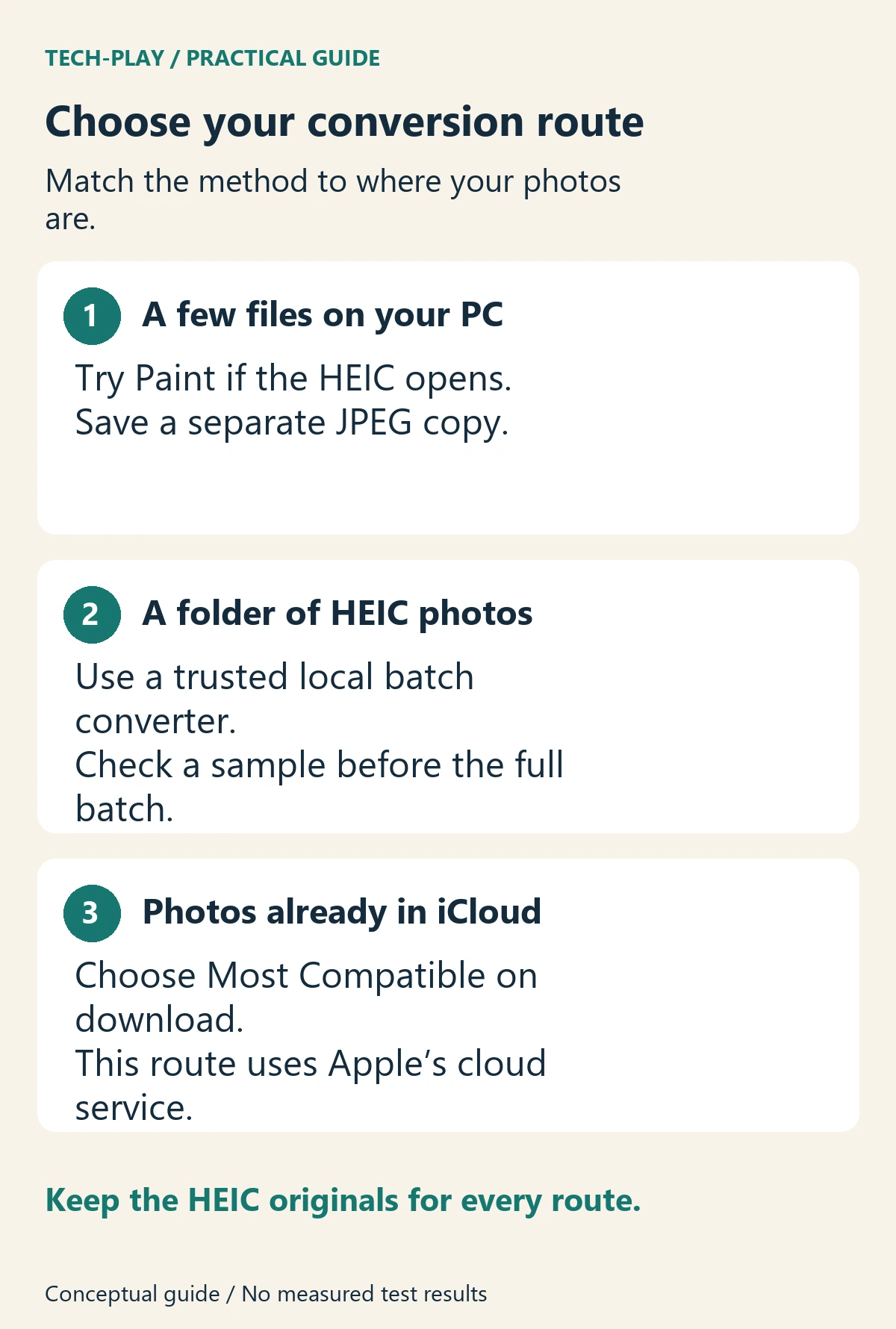
Choose a HEIC-to-JPG method
- One or two files already on your PC: try Paint first, provided it can open them.
- A folder of files or control over export quality: use a local batch converter such as iMazing Converter.
- Photos already in iCloud Photos: download them using Most Compatible. This uses Apple’s cloud service.
- You only need to view the pictures: try resolving HEIC support instead of converting your whole library.
Before starting, copy a few photos into a working folder and create a separate folder for the JPG results. Use these first files to check the process before converting hundreds of pictures.
Convert a HEIC photo to JPG with Paint
Paint is a useful first attempt because it is included with Windows 11 and supports JPEG output, as Microsoft’s Paint page confirms. Opening HEIC is the compatibility hurdle; do not assume every Windows installation has the necessary decoder.
- Open Start, type Paint, and launch the app.
- Choose File > Open and select your HEIC photo. If the file picker filters it out, change the file-type filter to show all files.
- If the photo opens correctly, choose File > Save as, then the JPEG picture option. In a standard save dialog, select JPEG in Save as type.
- Save to your results folder with a different filename, such as
holiday-share.jpg. Leave the original untouched. - Open the JPG you just saved. Check that the whole image appears correctly and that you did not accidentally crop or resize it.
If Paint cannot open the file, stop here and use the codec troubleshooting below or a converter with its own HEIC support. Renaming .heic to .jpg does not convert the underlying image.
Paint is convenient for occasional files. For quality controls, metadata choices or large batches, a dedicated converter offers a more deliberate workflow.
Batch-convert HEIC to JPG locally
iMazing Converter is a free Windows and Mac tool with JPEG and PNG output, quality and resolution controls, folder input, and an option to preserve or remove EXIF metadata. Those are the developer’s published features, rather than results from a Tech-Play test.
The developer’s conversion guide says conversion happens on the device without uploading photos to the cloud. That makes it a useful option when you want to avoid a web upload, though installing any app still requires trusting its publisher.
- Download iMazing Converter from the official site. Check that you have selected the standalone converter.
- Launch it and drag in your sample HEIC files or a folder.
- Select JPEG as the output format.
- Keep the original resolution. Choose a high quality setting for the first sample; treat it as a starting point to inspect, not a guaranteed optimum.
- Decide whether to keep EXIF metadata. Preserve it if dates and camera details matter; remove it from sharing copies when you do not want that information included.
- Select Convert and choose your separate results folder.
- Check the sample outputs before processing the remaining files with the same settings.
Download JPG copies from iCloud on Windows
If the photos already live in iCloud Photos, you can get JPEG copies without first making a local HEIC file readable in Windows. Apple’s iCloud download instructions document the format options.
- In your browser, go to iCloud.com/photos and sign in to your Apple Account.
- Select the photos you need. On a PC, hold Ctrl to select multiple items.
- Open the More menu and choose More Download Options.
- Choose Most Compatible, which supplies JPEG for photos, then download.
- If you receive an archive, extract it before checking or attaching the pictures.
Apple allows up to 1,000 selected items at a time. Unmodified Originals preserves the captured or imported format, so it is the wrong choice when your immediate goal is a compatible JPG.
Use this route for photos already in iCloud. Uploading a private local collection just to change its format adds a cloud transfer that an on-device converter avoids. On a shared PC, sign out afterwards and remove downloaded personal copies when you finish.
Preserve resolution and minimize visible quality loss
HEIC commonly appears with iPhone photos using HEIF, the High Efficiency Image File Format. JPG and JPEG are two extensions for the same image format. Adobe’s JPEG explanation describes its lossy compression and the metadata a JPEG can contain.
Three different checks matter: pixel dimensions, visible detail and retained information. A full-resolution export can still have compression artifacts or omit metadata. A larger file is not proof of a better picture.
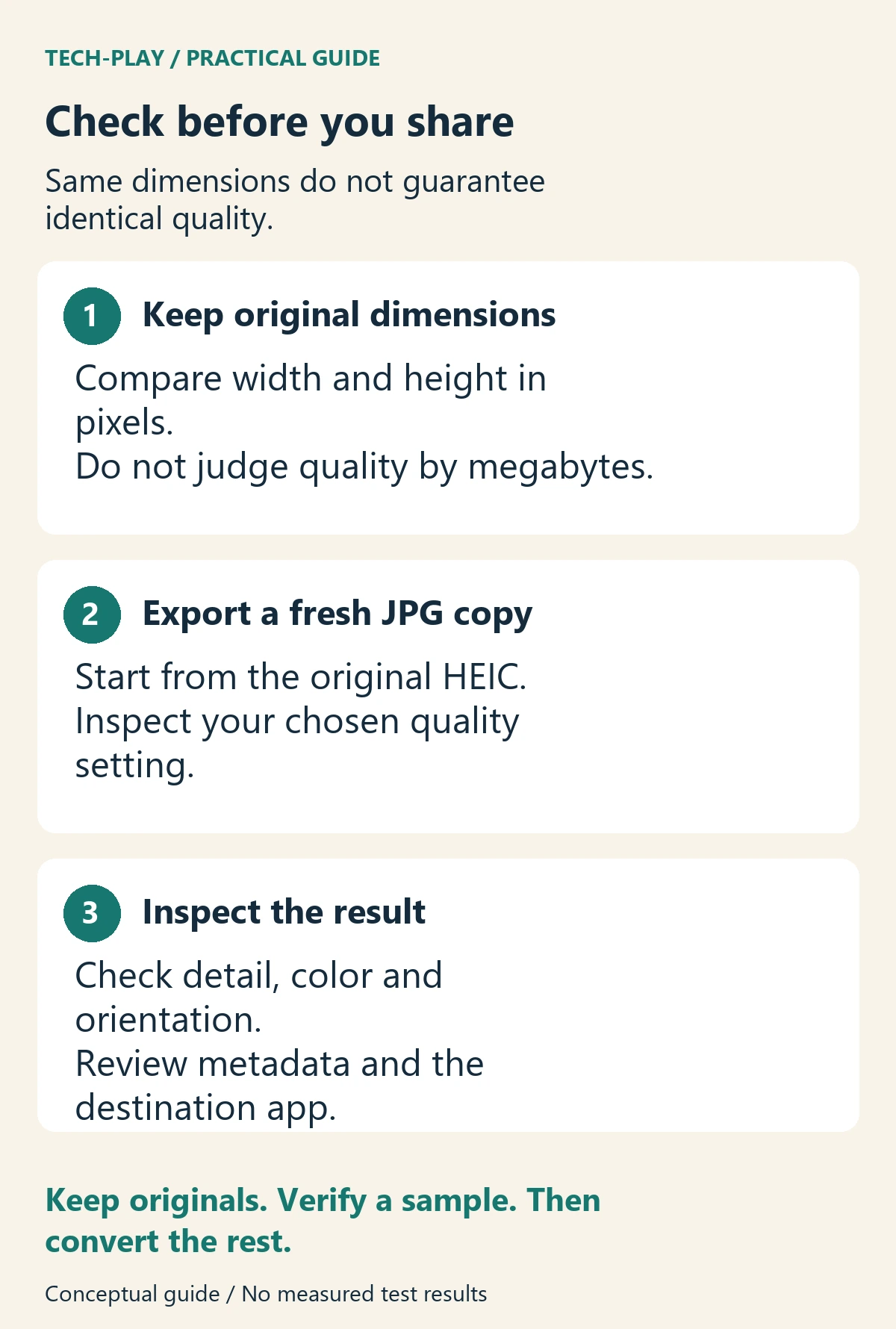
Use this copyable acceptance checklist for your sample files:
- Keep the source: retain the original HEIC in a separate, backed-up location.
- Match the dimensions: compare width and height in pixels, not just megabytes. In Windows, right-click a readable image and inspect Properties > Details. If HEIC details are unavailable, check them in the converter or another app that can read the original.
- Inspect at 100%: look at hair, foliage, small lettering, straight edges and smooth skies. Reject obvious smearing, halos or blocky patches.
- Check the appearance: compare orientation, crop, skin tones and bright areas in the same viewing app where possible. A visible change deserves investigation before a batch conversion.
- Check metadata deliberately: inspect dates and location fields if they matter to your archive or privacy. Do not assume every exporter preserves or removes the same fields.
- Open the destination: test the JPG in the app, upload form or service you actually need.
For example, a source measuring 4032 × 3024 pixels and an output measuring 2016 × 1512 indicate resizing. Matching dimensions rule out that particular problem, but do not establish identical quality. These are illustrative dimensions, not measured conversion results.
Avoid using a screenshot as the conversion method: it captures the displayed view rather than reliably exporting the original pixel dimensions. If you edit the picture again, return to the original and export a fresh sharing copy instead of repeatedly re-saving an existing JPG.
Fix HEIC files that will not open or convert
Windows asks for an HEIF or HEVC extension
Microsoft provides HEIF Image Extensions and HEVC Video Extensions through its Store. Both may be involved even when you are opening a still photo. Adobe’s Windows codec instructions require both for HEIC import in Photoshop; Microsoft’s HEIF support notes also explain that Windows may need an additional codec.
Search the Microsoft Store for those exact extension names and confirm Microsoft Corporation as publisher. Check your PC’s existing installations and the Store’s local price before paying for anything. Availability, bundled support and prices can differ. After installation, close and reopen the image app.
If your work or school blocks Store installations, ask your IT team about an approved converter or use the iCloud download route for photos already stored there. Avoid unofficial codec packs.
The downloaded file is still HEIC
Check which download option you chose. iCloud’s original-format option can return HEIC. Also, OneDrive for iOS uploads HEIF photos in their original format, according to Microsoft’s support notes linked above. Cloud storage does not automatically imply JPG conversion.
Only one file fails
Try another HEIC from the same device. If that works, copy the failing original again and retry. If every file fails, investigate app support or codecs first. Keep failed sources separate so that a partial batch does not look like a completed conversion.
The JPG looks different or has no date information
First confirm you exported the intended original rather than a thumbnail or an already resized copy. Then check resolution, quality and metadata settings. If those are correct, try another decoder and compare the result before committing the full folder. Keep the HEIC whenever the converted appearance is unacceptable.
Common HEIC conversion questions
Can I convert HEIC to JPG for free?
Yes. The standalone iMazing Converter is listed as free, and iCloud offers compatible downloads for photos already in your account. Paint can save JPEGs when it can read the source; any missing Windows codec may introduce a separate Store purchase.
Does setting an iPhone to Most Compatible convert old photos?
No. Settings > Camera > Formats > Most Compatible changes future camera captures to JPEG for photos. Existing HEIC files still need conversion. Apple documents the setting in its HEIF and HEVC guide.
Should I use an online HEIC converter?
For sensitive pictures, prefer a trusted local tool. Before using a website, establish whether conversion happens inside the browser or uploads files to a server, and check retention and deletion terms. A claim of “private” alone does not explain the data handling.
If an AI assistant recommends a converter or a codec download, use our AI answer verification checklist to trace the claim to the actual publisher before installing it.
Can I delete the HEIC files afterwards?
Keep them as your originals. A JPG is a useful compatibility copy, but checking that it opens is not proof that it retains everything you may need later. Start with three representative photos, run the acceptance checklist, then convert the rest only when the results suit your intended use.