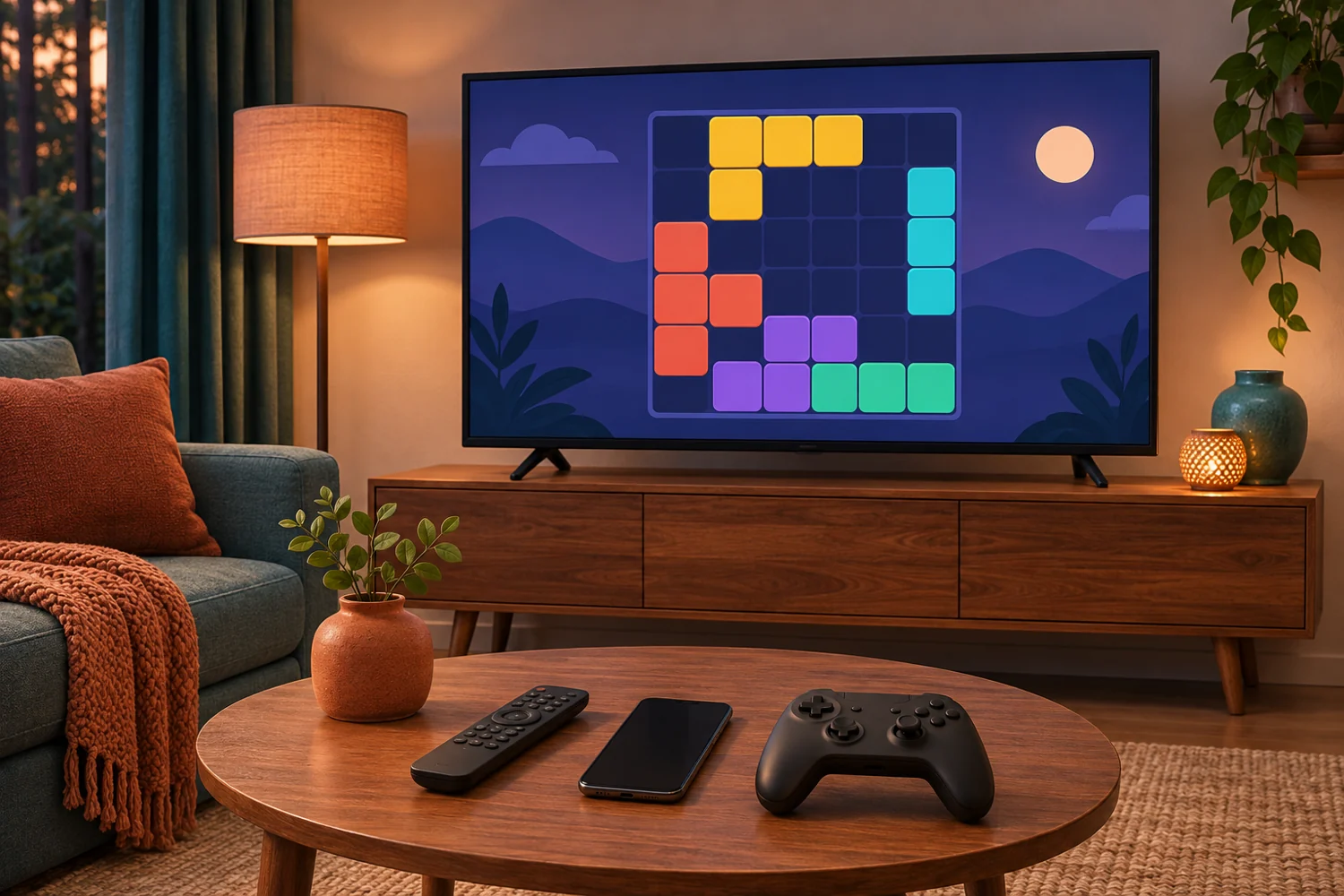
You can play free games on a smart TV without a console. Start with your TV’s app store and look for a game that works with the remote you already have. If the selection is thin, mirror a phone game to the TV and keep using the phone’s controls. A TV browser is worth a try for simple puzzles, while cloud gaming needs a supported service, a compatible controller and a reliable connection.
Samsung Tizen, LG webOS, Android TV and Google TV have different menus and game catalogs. Check your exact TV model and country before buying a controller or signing up for anything. Availability and service terms were checked on November 19, 2026.
Can you really play free games on a smart TV?
Yes. The TV can run an app or browser game itself, display a game running on your phone, or stream a game running on a server. That difference tells you where to look for the game and which device should receive your button presses.
Some free-to-play games have ads or optional purchases. A free cloud tier may limit sessions or make you wait for a slot. A trial has an end date and may renew at a charge. Before accepting a trial, check the renewal date and price shown for your account. A free app download can still lead to a paid library.
Four ways to play games on your TV without a console
1. Download a free game from your TV’s app store
Search from the TV itself. If the game is available, open its listing and check the price, any in-app purchases and the required controls. Install it, then use your remote to start a round, make a move and restart. If you’re setting it up for someone else, hand them the remote during that first round. Starting a new game without help is a better test than seeing the title screen.
Store search is also the quickest way to rule out a phone-only game. A listing in Google Play on your phone tells you about the Android app. The listing on your TV tells you whether it’s offered for that device.
2. Try browser games on your smart TV
Open Internet or Web Browser if your TV offers one. Enter the game’s direct web address and start with a turn-based puzzle. If the page opens, select the game area and check whether you can start, make every kind of move and restart. Some browsers use the remote’s directional pad to move focus around the page, so pressing Right might leave the game board. LG also documents that a TV browser can have more limited functions than a desktop or phone browser. LG’s TV browser guide
Want to play 2048 on TV? Test all four directions and the reset button. If the arrow keys move the webpage and your TV supports a keyboard, try it with the board selected. If the controls still fail, open a swipe-friendly version on your phone and mirror the screen. You get a larger board to look at while keeping the controls you know.
3. Mirror a game from your smartphone
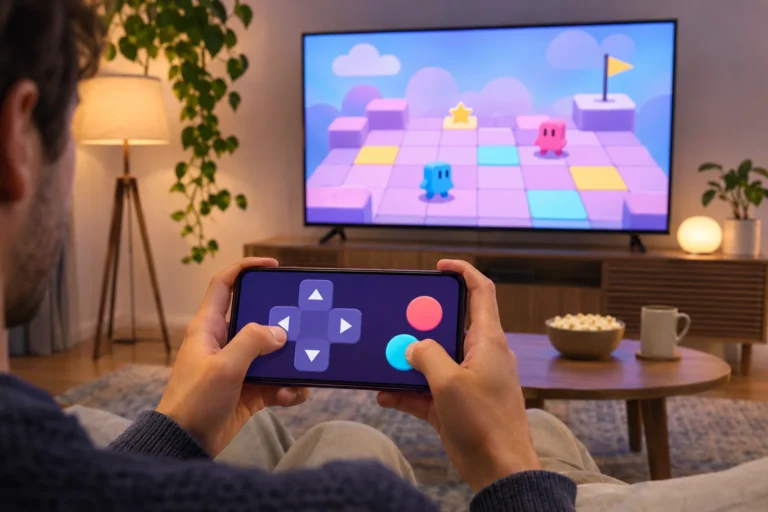
With screen mirroring, the game runs on your phone and the TV shows its picture. Keep playing with the touchscreen, or pair a controller to the phone if the mobile game supports it. An app’s Cast button is for content that the app explicitly supports sending to a receiver. For a game without that feature, look for screen mirroring on the phone instead. Google’s guide to casting from supported apps
- Put the phone and TV or streaming device on the same home Wi-Fi network.
- On an iPhone, open Control Centre → Screen Mirroring and select an AirPlay-compatible TV or receiver. On Android, use your phone maker’s supported mirroring feature, or open Google Home, press and hold a compatible receiver’s tile and choose the screen-casting option. Apple’s AirPlay steps and Google’s Android screen-casting steps
- Open the game and make a few moves. If you feel a delay between tapping and seeing the result, try a puzzle or a turn-based game where timing matters less. Turn on Do Not Disturb if you’re sharing the screen with a room.
4. Stream a game through a cloud service
Cloud gaming sends the picture from a remote server and sends your inputs back over the internet. Check whether the service has a supported app for your exact model in your country. Check whether the listing includes the game or requires ownership, and look for any separate streaming charge.
GeForce NOW offers a Free membership in NVIDIA-operated markets where the tier is available. The Free tier can have queues, ads before sessions and shorter sessions than paid tiers. You still need access to the game through a supported store or account. Choose a supported free-to-play title if you want to avoid buying a game. Check the local operator’s terms in partner markets. NVIDIA’s membership FAQ and device and controller requirements
Xbox Cloud Gaming runs through the Xbox app on select TVs. Most games in the TV app require paid access, and Xbox lists select free-to-play exceptions. Check the game’s price or access prompt after signing in. Xbox also announced paid cloud hours for eligible owned games without a recurring Game Pass subscription, so check the local terms before treating any subscription-free offer as free play. Xbox’s TV and controller FAQ and Xbox’s cloud playtime announcement
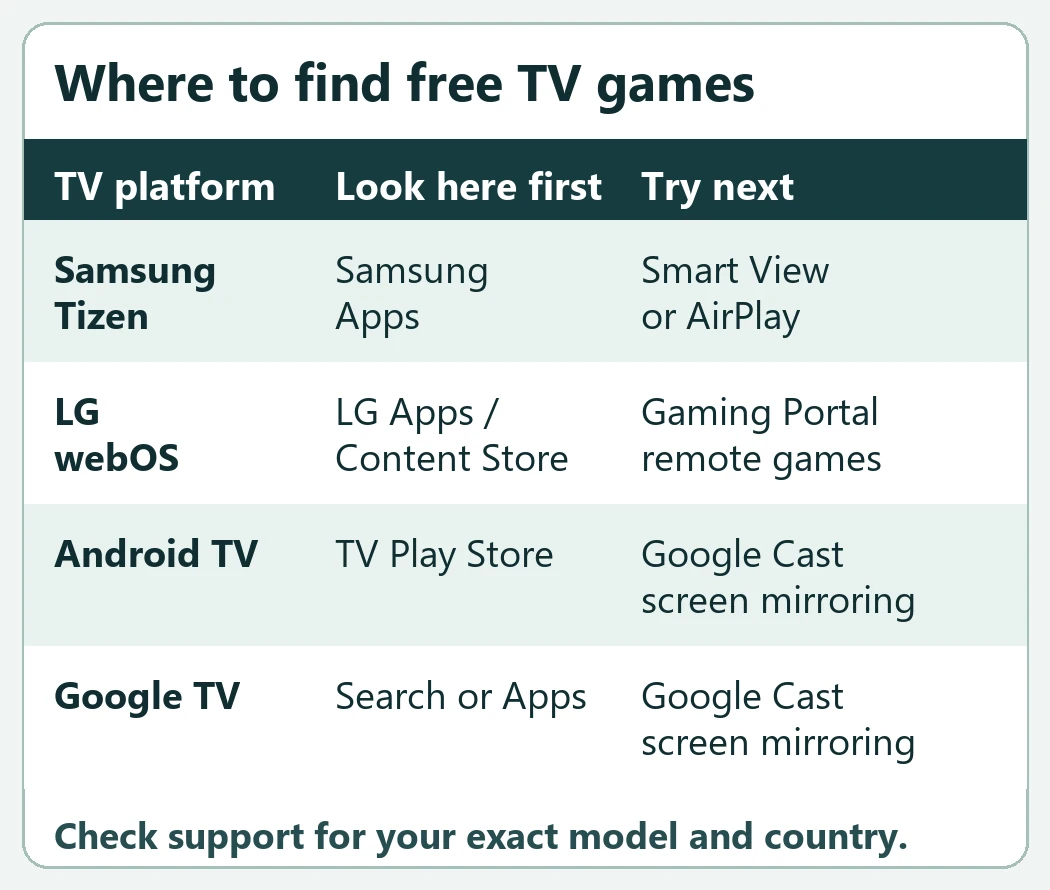
How to play free games on Samsung Smart TVs
Press Home, open Apps, then use Search and choose Install if a game is available. On compatible sets, open Gaming Hub to see your streaming options. Samsung describes Gaming Hub support for select 2022 and newer models on its Canadian site. Xbox separately lists select Samsung TVs from 2020 onward for its app. If you’re looking for one service on an older set, search for that app by name and verify the model on the provider’s list. Samsung’s app instructions and Samsung’s Gaming Hub compatibility information
If the app selection is limited, a compatible Galaxy phone can mirror via Smart View. An iPhone can mirror via AirPlay on supported Samsung sets. Confirm the exact phone and TV combination before relying on either route. Samsung’s screen-mirroring guide
How to play free games on LG Smart TVs
Press Home and look for LG Apps or LG Content Store, then search for a title. If your set shows Gaming Portal, look for games marked for remote control before opening a cloud service. Portal access and individual apps depend on region, model and software. The Xbox app has its own compatibility rules, including webOS 24 or later on select TVs. LG’s app installation guide and LG’s Gaming Portal guide
If a title is missing, confirm that LG Services Country matches where you live and check for a TV update. If you’d rather play a game already on your phone, use the Android screen-sharing or iPhone AirPlay route supported by your particular model. LG’s app troubleshooting and LG’s phone mirroring instructions
How to play free games on Android TV and Google TV
On Android TV, search for the title in the TV’s Google Play Store. On Google TV, use Search on Home or browse the Apps tab. Google TV runs on Android TV OS with its own home screen and menus. If a game is missing, see what your TV offers before following a tutorial for a different model. For cloud play, NVIDIA documents a GeForce NOW app for compatible Android TV devices. Check for the listing on your set. Android TV game instructions, Google TV app installation, Google TV platform FAQ and NVIDIA’s Android TV requirements
If the store comes up short and your device supports Google Cast, try mirroring an Android phone with the steps above. For titles to search for, browse Tech-Play’s free Android TV games roundup and confirm availability and controls on your own TV.
Free games worth trying first
- 8 Ball Pool on LG. LG lists the free-to-play game for supported TVs and monitors running webOS 6.0 or later, with optional purchases. Search in LG Apps or Gaming Portal. The TV edition supports aiming and shooting with the LG Magic Remote and includes a two-player mode on the same screen. LG’s 8 Ball Pool announcement
- Tetris or PAC-MAN on LG. LG names both as free-to-play Play.Works titles. Search your Portal and check the control prompt for the version shown on your set. LG’s Play.Works catalog announcement
- Fortnite via GeForce NOW. NVIDIA lists Fortnite in its catalog. Check for the Free tier in your region and use a supported controller on your TV. This is the option to try when you already have the controller and want a full cloud game. NVIDIA’s game catalog
The Tech-Play Games hub has browser games and more TV gaming guides. Check the controls on the device that actually runs the game before settling in.
Can you use the TV remote, or do you need a controller?
A remote is enough when the game supports directional buttons and Select, or when it explicitly supports a pointer remote such as LG’s Magic Remote. A remote that can browse the store might still fail inside the game. Pair a controller to the TV for a supported TV app or cloud service, and to the phone for a mirrored phone game. Look up the exact controller model before buying, since pairing and in-game support are separate checks. Google’s TV navigation documentation
What to do when smart TV games don’t work
- The game is missing. Search on the TV, check for a software update, then look up your model and country with the game or service provider.
- It opens, but the remote won’t play it. With a browser game, select the board and retest. With a TV app, check its control screen for a gamepad or pointer requirement.
- The phone can’t find the TV. Verify both devices are on the same network and that the TV supports the phone’s mirroring method. A guest network can keep devices from seeing one another. Check the TV for a connection prompt.
- The cloud picture stutters. Try Ethernet if your device supports it, or use 5 GHz Wi-Fi near the router. Pause large downloads and lower the streaming quality if the service offers that setting. For persistent pairing or app problems, see Tech-Play’s Android TV and Google TV troubleshooting guide.
Frequently asked questions
Can I play without Wi-Fi?
Some installed games work offline. To check, finish any first-run setup, disconnect the TV from the network and see whether the game still starts. Cloud games need internet access, which can be wired. Wireless mirroring needs a compatible local connection between the phone and receiver.
Does everyone need a controller for multiplayer?
That depends on the game’s local multiplayer mode. LG’s 8 Ball Pool has same-screen play. For other games, look for explicit local multiplayer support and confirm how each player joins before buying a second controller.
Can I keep playing if the TV browser fails?
Yes, if you have another device that can run the game. Mirror a compatible phone and use its touchscreen, or connect a laptop you already own via HDMI and use the laptop’s controls. The TV acts as the display in either case.
What’s the easiest way to start?
Use the remote and search your TV’s store first. If a free game lets you start, play and restart with the remote, you’re set. If the store comes up short, mirror a familiar phone game. Try cloud gaming when you already have a compatible controller and can confirm the streaming cost up front.

[…] If you want another way to play with the equipment you already have, see how to play free games on a smart TV without a console. […]