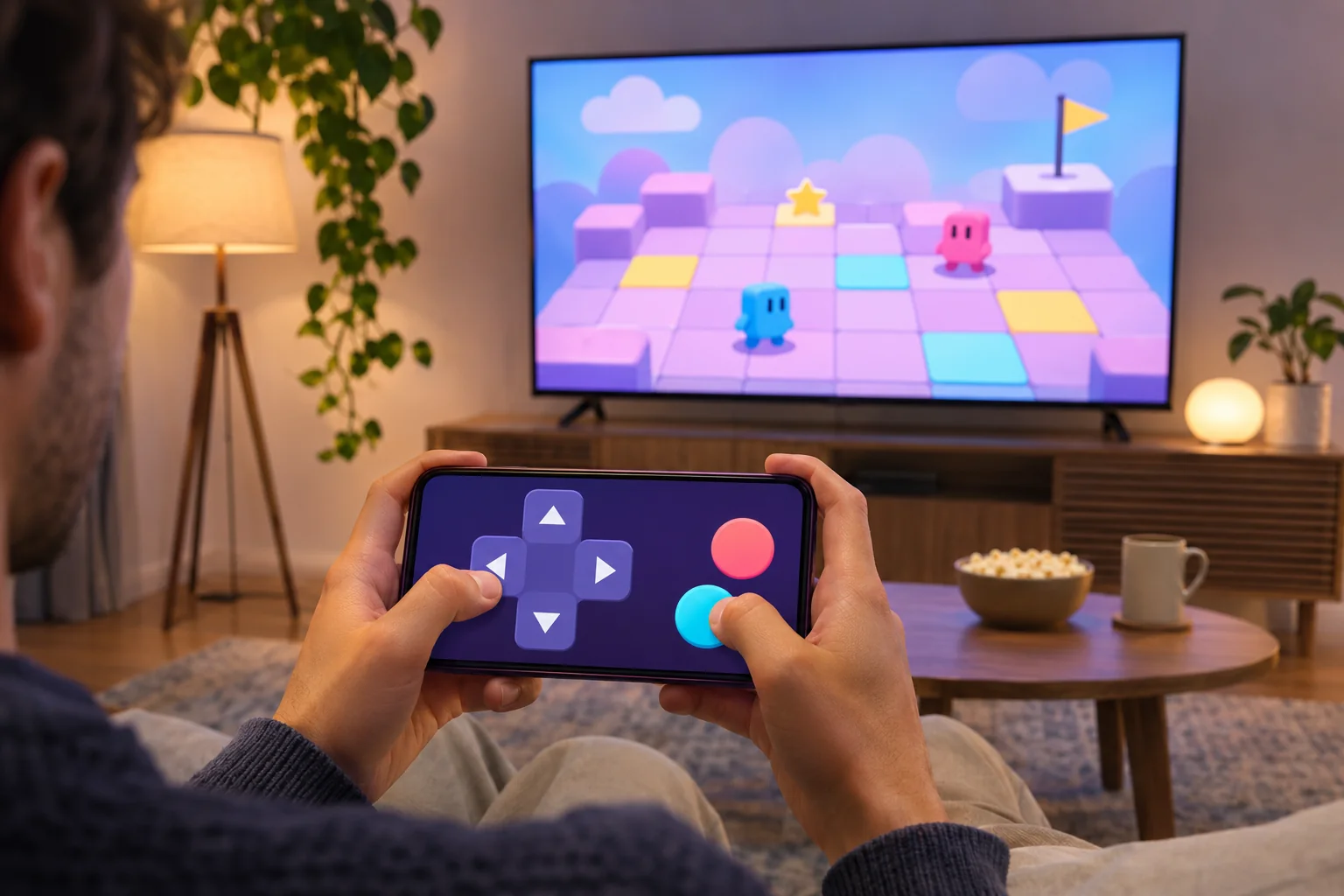
You can use your phone as a smart TV game controller when the game or service supports it. For Netflix TV games, scan the QR code the game puts on screen. For Jackbox, open the join page on your phone and enter the room code. In both cases, everyone watches the game on the TV while each player uses their own phone to play.
Start by opening the game on the TV or on a device connected to it. Look for a QR code, a room code, or the game’s control instructions. If it calls for a physical gamepad, check which controllers the game supports before buying one. For games and other setup guides, browse the Tech Play Games hub.
Use your phone to play Netflix games on TV
Open Netflix on your TV or streaming device, choose your profile, and look for Games at the top. If it appears, start a title from there. Netflix includes the TV games beta with membership in supported countries. As of November 21, 2026, those include Austria, Brazil, Germany, the UK, and the US. If the tab is missing, check your country and exact device first. Netflix’s account settings can show which of your devices are compatible. If yours is listed, check for a software update. Netflix TV game availability and device checks
- Select Play Game on the TV. Some titles show the QR code after the opening screen.
- Scan the QR code with your phone’s camera and tap the link it opens.
- On Android, use the Netflix app. If the link prompts you to install it, finish installing and scan the code again. On iPhone or iPad, use the Netflix Game Controller app with iOS or iPadOS 17 or later.
- Have each player connect their own phone or tablet. A guest can connect without signing in to the host’s Netflix account.
If the phone opens a controller screen, try one input before starting a round. That gives you time to reconnect a player while everyone is still getting settled. Netflix phone controller instructions
Join a Jackbox game with your phone
The host needs a copy of the Jackbox game for a compatible platform. For example, a laptop connected to the TV by HDMI can run the game while everyone uses their phones to join. If you’re buying a pack, check that the store listing matches the machine that will host it. Jackbox host setup
- On the host device, open a game and leave its lobby on screen.
- Each player opens jackbox.tv in a phone browser, enters the four-letter code from the TV, and picks a player name.
- When all the names appear in the lobby, start the round from the host screen.
The join page runs in the browser. Each player needs their own browser session on a separate device. Jackbox joining instructions
Smart TV game controller, remote, or screen mirroring?
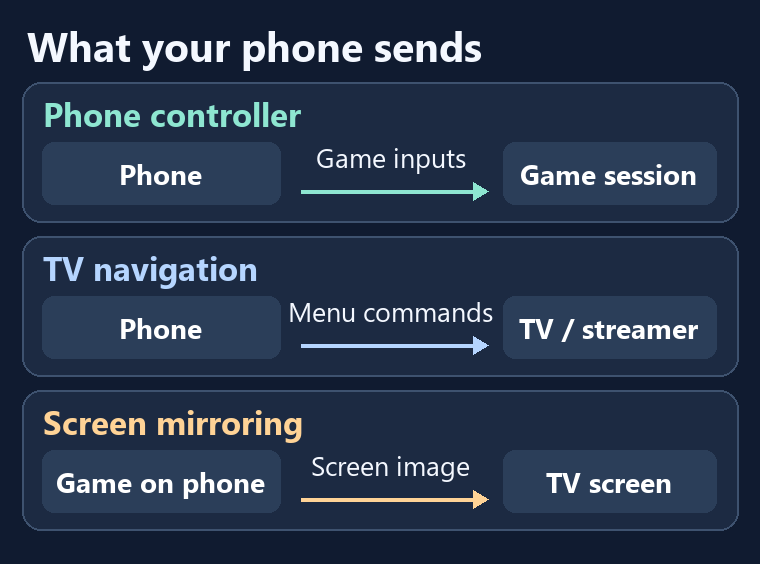
- Phone controller. The phone sends moves, answers, or other game inputs to the session. Netflix streams the game to the TV app, while a Jackbox host device can display the game on the TV.
- TV remote. A virtual remote sends navigation commands to the TV or streaming device. The Google TV remote, for example, can select a game in a menu. Once the game opens, use the control method the game specifies. Google TV virtual remote controls
- Screen mirroring. The game runs on the phone, your taps stay on the phone, and the TV shows a copy of its screen. This can work for a mobile game you already play when your phone and TV support the same mirroring method. Apple screen mirroring and Google Home screen casting
Pairing checklist for when a phone won’t join
- No Netflix QR code. Start the game and continue past the opening screen. If you never saw the Games tab, go back to the device and country checks.
- The code won’t scan. Use the phone’s built-in camera, move a little closer or farther away, and tap to focus. If the controller app reports a camera permission issue, check its permissions in phone settings.
- Jackbox rejects the room code. Check that the host still has the lobby open and use the four letters currently on the TV. If the join page itself stalls, try an up-to-date browser with cookies and JavaScript enabled.
- The Netflix controller disconnects. Wake the phone if its screen went dark. If it fails to reconnect, scan the TV’s code again.
- The phone moves around TV menus but won’t play. Check the game’s own input instructions. If it requires a gamepad, use a supported one or pick a title with phone controls.
If you want another way to play with the equipment you already have, see how to play free games on a smart TV without a console.