Android TV can turn a normal living room into a full entertainment hub. Movies, YouTube, Netflix, games, music, fitness apps, smart home controls, screen casting — it all lives on one big screen.
But let’s be honest: smart TVs can also feel confusing at first.
You turn it on, see apps everywhere, get asked to sign into accounts, connect remotes, update software, choose privacy settings, and suddenly the “simple TV setup” feels like a small tech project.
This Android TV guide walks you through everything step by step. Whether you just bought a new Android TV, a Google TV device, or a streaming box, this guide will help you set it up, install apps, improve performance, and avoid the most common beginner mistakes.
What Is Android TV?
Android TV is Google’s TV operating system for smart TVs, streaming boxes, and media devices. It is designed for big screens and remote controls instead of touchscreens.
You can use Android TV to:
- Watch streaming services
- Install apps from Google Play
- Play games
- Use voice search
- Cast from your phone
- Connect Bluetooth devices
- Control some smart home products
- Watch YouTube, live TV, movies, and shows
In simple words: Android TV is like Android for your television, but redesigned for the couch.
Android TV vs Google TV: What Is the Difference?
This is one of the most common questions.
Android TV is the underlying operating system. Google TV is a newer interface built on top of Android TV. Many newer devices now use Google TV because it focuses more on recommendations, profiles, and content discovery.
Here is the simple version:
- Android TV: More app-focused, classic smart TV layout.
- Google TV: More content-focused, with recommendations across apps.
- Both: Use Google Play apps, Google services, voice search, and similar setup steps.
So if your TV says “Google TV” instead of “Android TV,” don’t worry. Most of this guide still applies.
Step 1: Unbox and Connect Your Android TV Device
Before you start clicking through menus, make sure the basics are ready.
You need:
- Your Android TV or Google TV device
- TV remote
- Power cable
- HDMI cable if using a streaming box or stick
- Stable Wi-Fi connection
- Google account
- Optional: Android phone for faster setup
If you are using a smart TV with Android TV built in, just connect the TV to power and turn it on.
If you are using a streaming device, connect it to an HDMI port on your TV. Then switch your TV input to the correct HDMI source.
Tip: If your TV has multiple HDMI ports, remember which one you used. For example: HDMI 1, HDMI 2, or HDMI ARC.
Step 2: Pair the Remote
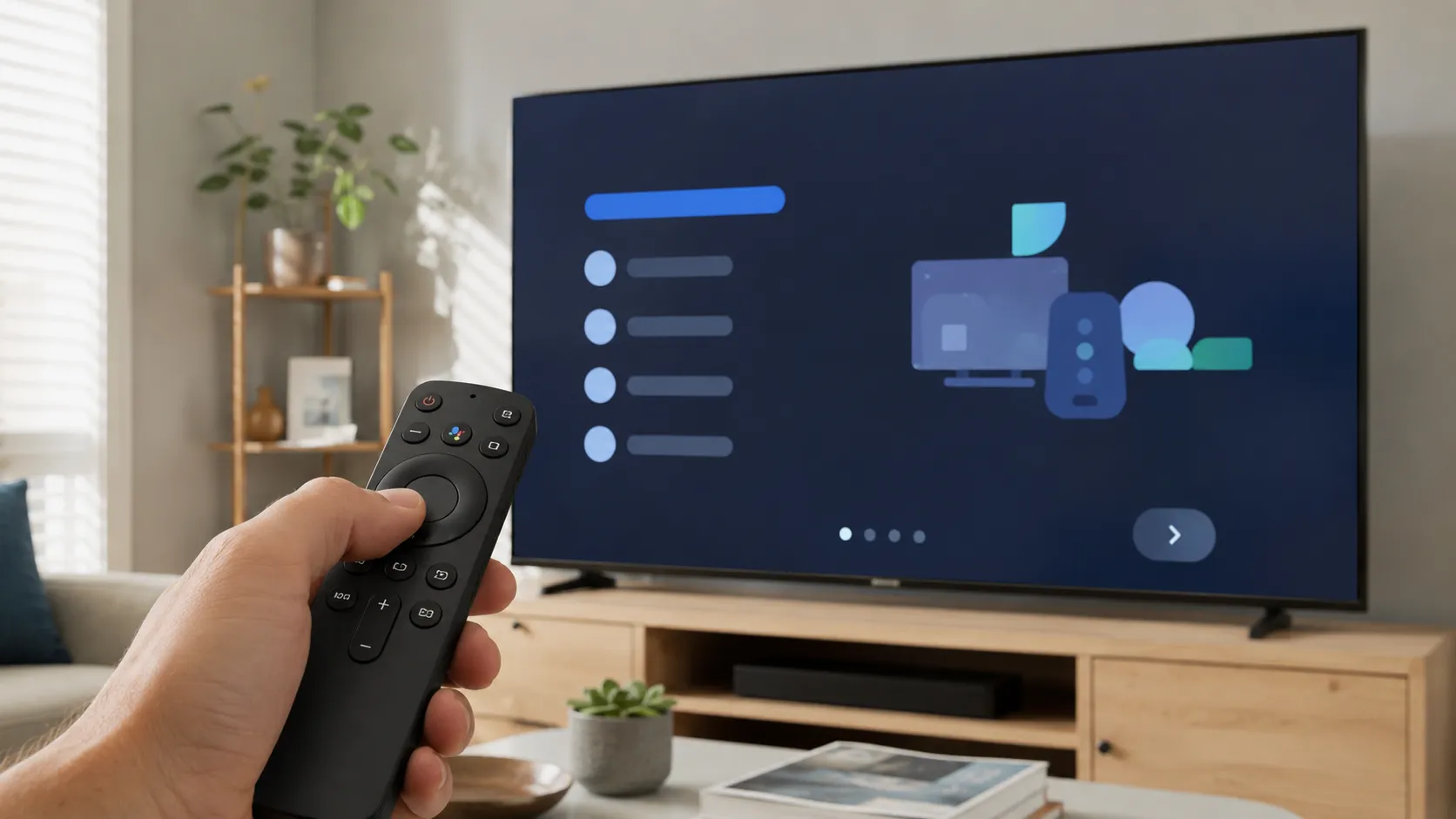
Most Android TV remotes connect automatically. If not, the screen will usually show instructions.
Common pairing methods include:
- Holding the Home button
- Holding the Back and Home buttons together
- Holding a dedicated pairing button
- Following the on-screen setup prompt
If the remote does not respond, check the batteries first. It sounds basic, but weak batteries are one of the most common reasons a new remote fails during setup.
Also make sure there is no object blocking the TV or device.
Step 3: Connect to Wi-Fi
Next, your Android TV will ask for an internet connection.
Choose your Wi-Fi network and enter the password. For best streaming performance, connect to a strong 5 GHz Wi-Fi network if available.
A weak Wi-Fi signal can cause:
- Buffering
- Low video quality
- App crashes
- Slow loading
- Failed updates
If your router is far away from the TV, consider using Ethernet if your TV or streaming box supports it. A wired connection is often more stable than Wi-Fi, especially for 4K streaming.
Key takeaway: A smart TV is only as good as its internet connection.
Step 4: Sign In With Your Google Account
To use the full Android TV experience, sign in with a Google account.
This allows you to:
- Download apps from Google Play
- Sync purchases
- Use YouTube properly
- Access Google Assistant
- Get app updates
- Use personalized recommendations
- Manage subscriptions more easily
Some devices allow quick setup with an Android phone. This can make the process faster because your phone can help transfer account and Wi-Fi details.
If you do not want to use a personal account, you can create a separate Google account just for your TV. This is useful for families, shared living rooms, or rental apartments.
Step 5: Update Your Android TV
After setup, check for updates immediately.
Go to:
Settings → System → About → System Update
The exact menu names can vary depending on your TV brand, but most Android TV devices have a similar structure.
Updates can improve:
- Security
- App compatibility
- Streaming performance
- Remote control behavior
- Bug fixes
- System stability
Do not skip this step. A brand-new TV or streaming device may have been sitting in a warehouse for months, so updates are often waiting.
Step 6: Install Your Essential Apps
Now comes the fun part: apps.
On Android TV or Google TV, you can install apps from Google Play. Start with the apps you actually use instead of installing everything at once.
Popular app categories include:
Streaming Apps
- Netflix
- Disney+
- Prime Video
- YouTube
- Apple TV
- Crunchyroll
- DAZN
- local TV apps
Music Apps
- Spotify
- YouTube Music
- TuneIn Radio
Gaming Apps
- Casual games
- Racing games
- Puzzle games
- Cloud gaming apps where available
Utility Apps
- File managers
- Media players
- Speed test apps
- Photo gallery apps
- VPN apps, where legally and practically appropriate
Important: Only install apps from trusted sources. Random APK files from unknown websites can create security and privacy risks.
Step 7: Organize Your Home Screen
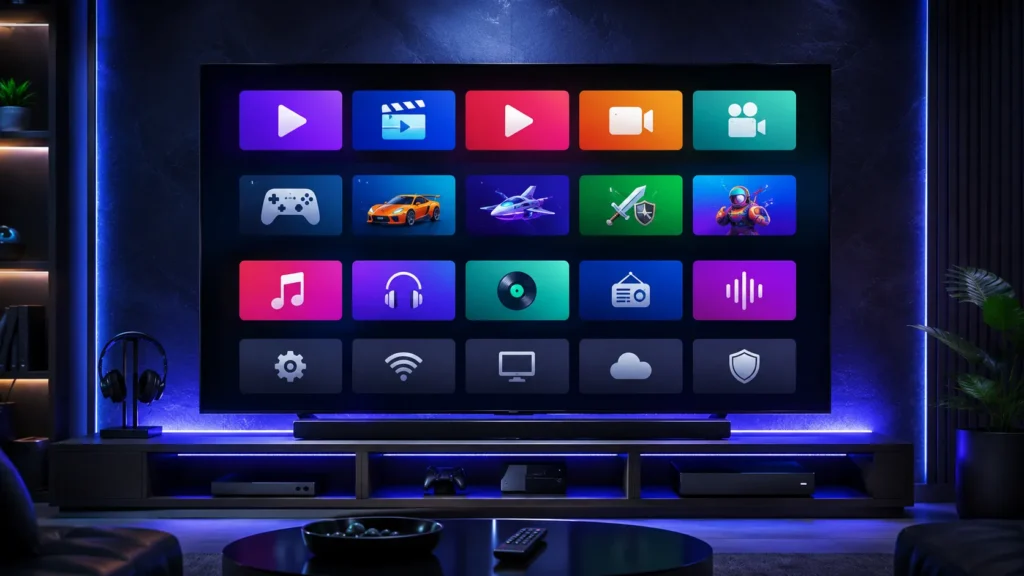
A messy home screen makes Android TV feel slower and more confusing.
Take a few minutes to organize your apps.
You can usually:
- Move favorite apps to the front
- Remove apps from the favorites row
- Disable unwanted recommendations
- Reorder app tiles
- Hide apps you rarely use
- Create separate profiles on supported devices
Put your most-used apps first. For most people, that means YouTube, Netflix, Prime Video, Disney+, Spotify, and one or two local apps.
The goal is simple: when you sit down, your TV should feel ready, not chaotic.
Step 8: Set Up Voice Search
Many Android TV remotes include a microphone button.
Voice search can help you quickly find:
- Movies
- Shows
- YouTube videos
- Apps
- Actors
- Genres
- Weather
- Sports scores
- Music
Instead of typing with the remote, press the microphone button and say what you want.
For example:
- “Open YouTube”
- “Play relaxing music”
- “Show action movies”
- “Open Netflix”
- “Find cooking videos”
- “What is the weather tomorrow?”
Voice search is especially useful because typing on a TV remote is not fun. Nobody enjoys clicking through an on-screen keyboard letter by letter.
Step 9: Connect Bluetooth Headphones or Speakers
One underrated Android TV feature is Bluetooth audio.
You can connect:
- Bluetooth headphones
- Soundbars
- Speakers
- Game controllers
- Some keyboards
This is perfect for late-night watching when you do not want to wake anyone else.
Go to:
Settings → Remotes & Accessories → Pair Accessory
Then put your headphones or speaker into pairing mode and select it on the TV.
If the sound has a delay, try disconnecting and reconnecting the device. Some Bluetooth headphones perform better than others with TVs.
Step 10: Cast From Your Phone
Many Android TV and Google TV devices support casting.
This means you can send content from your phone to the TV. It works especially well with apps like YouTube, Spotify, and some streaming platforms.
To cast:
- Open a supported app on your phone.
- Tap the Cast icon.
- Choose your TV.
- Control playback from your phone.
This is one of the easiest ways to show videos, music, or presentations on the big screen.
Pro tip: Make sure your phone and Android TV are on the same Wi-Fi network.
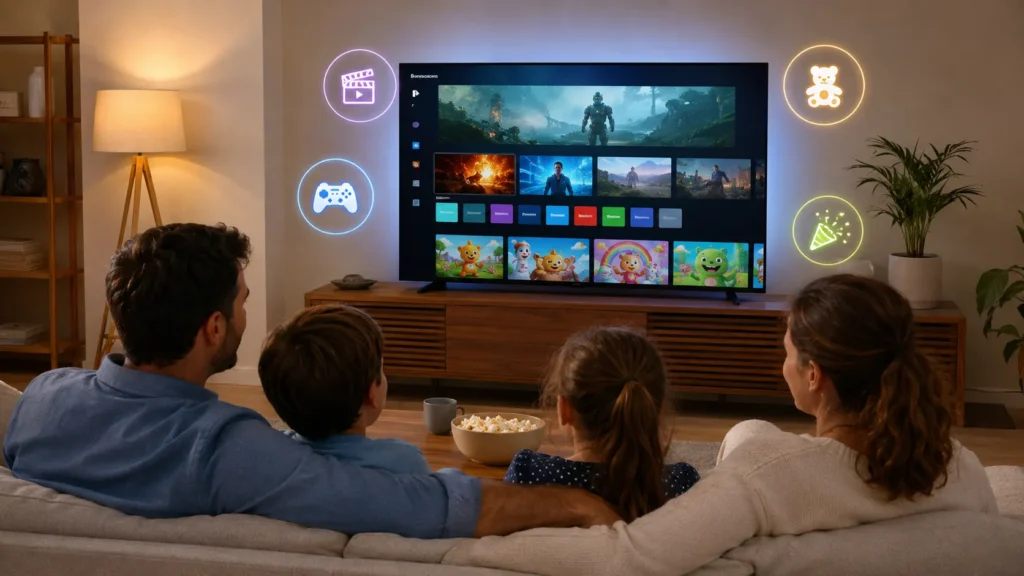
Step 11: Set Up Profiles and Kids Controls
If multiple people use the TV, profiles are a big help.
Profiles can separate:
- Watch history
- Recommendations
- App preferences
- Kids content
- Personal accounts
For families, parental controls are especially important. You can limit content, restrict purchases, and create a safer viewing experience for children.
A good family setup might include:
- One adult profile
- One shared family profile
- One kids profile
- Purchase restrictions
- Age-appropriate app settings
Step 12: Improve Android TV Performance
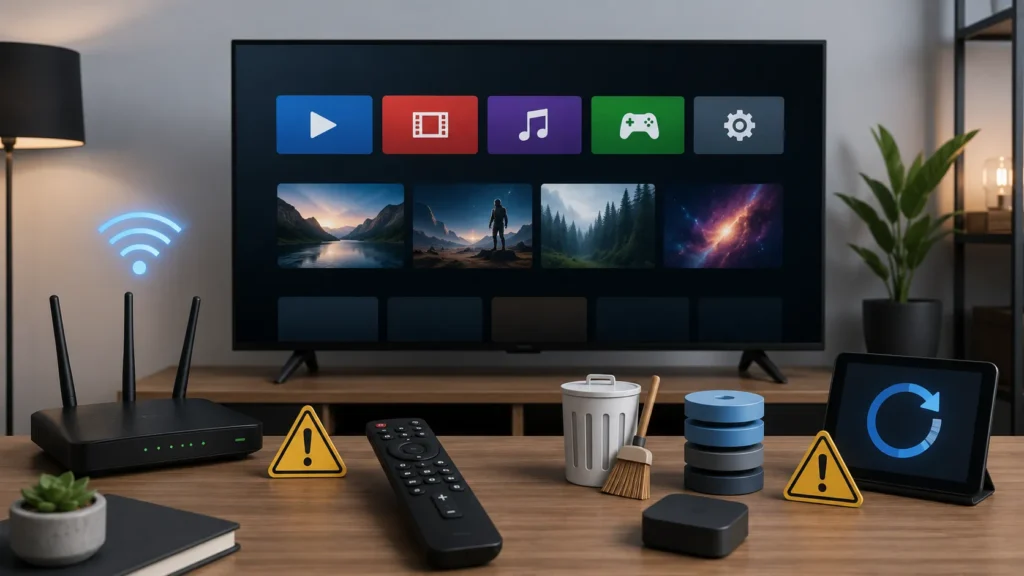
If Android TV feels slow, don’t panic. Many performance issues can be fixed.
Try these steps:
Restart the Device
A restart clears temporary problems.
Go to:
Settings → System → Restart
Or unplug the device for 20–30 seconds and plug it back in.
Remove Unused Apps
Too many apps can fill storage and slow down the device.
Delete apps you do not use.
Clear App Cache
If one app is slow or broken, clear its cache.
Go to:
Settings → Apps → Select App → Clear Cache
Do not clear data unless you are okay with signing in again.
Check Storage
Low storage is a common problem on smart TVs and streaming sticks.
Go to your storage settings and check how much space is available. If storage is almost full, uninstall unused apps or remove downloaded content.
Use Ethernet
If videos buffer often, your internet may be the problem. Ethernet can make streaming smoother than Wi-Fi.
Best performance rule: Keep your Android TV simple, updated, and not overloaded with apps.
Step 13: Add More Storage
Some Android TV devices allow external USB storage.
This can help if your device runs out of internal space. However, support depends on the model and manufacturer.
Before formatting a USB drive, remember this:
Formatting usually erases everything on the drive.
Use a spare USB drive, not one with important family photos, work files, or backups.
External storage can be useful for:
- More apps
- Larger games
- Media files
- Offline content
But for most casual users, deleting unused apps is the easier option.
Step 14: Fix Common Android TV Problems
Android TV is great, but like every smart device, it can sometimes act weird.
Here are the most common problems and fixes.
Problem: App Keeps Crashing
Try this:
- Restart the TV.
- Update the app.
- Clear the app cache.
- Uninstall and reinstall the app.
- Check for system updates.
Problem: Remote Not Working
Try this:
- Replace the batteries.
- Restart the TV.
- Re-pair the remote.
- Move closer to the device.
- Check if the remote uses Bluetooth or infrared.
Problem: Wi-Fi Keeps Disconnecting
Try this:
- Restart the router.
- Restart the TV.
- Move the router closer.
- Use 5 GHz Wi-Fi.
- Use Ethernet if possible.
Problem: TV Feels Slow
Try this:
- Remove unused apps.
- Clear cache.
- Restart the device.
- Disable unnecessary background apps.
- Check available storage.
Problem: App Is Not Available
Not every Android phone app works on Android TV. TV apps need to support remote controls and big-screen layouts.
If an app does not appear in Google Play on your TV, it may not be officially supported for Android TV.
Step 15: Make Android TV Better for Gaming
Android TV is not only for movies. It can also be fun for gaming.
You can play:
- Casual games
- Puzzle games
- Racing games
- Arcade games
- Family games
- Cloud games where supported
Some games work with just the TV remote, while others need a Bluetooth controller.
For casual family gaming, start with games that support remote control. For more serious gaming, connect a Bluetooth controller.
A controller makes a big difference for:
- Racing games
- Platformers
- Action games
- Cloud gaming
- Retro-style games
Tip: Before installing a game, check whether it supports Android TV and what input method it needs.
Step 16: Use Android TV for More Than Streaming
Android TV can do much more than Netflix and YouTube.
Try using it for:
- Home workouts
- Language learning
- Kids education
- Music playlists
- Video calls on supported devices
- Smart home control
- Photo slideshows
- News videos
- Cooking videos
- Ambient background screens
This is where Android TV becomes more than a TV. It becomes a shared screen for the whole home.
Best Beginner Tips for Android TV
Here are the quick tips every new user should know:
- Update the system first
- Use strong Wi-Fi or Ethernet
- Only install apps you need
- Move favorite apps to the front
- Use voice search instead of typing
- Create kids profiles for family use
- Clear cache when apps misbehave
- Restart the device once in a while
- Use Bluetooth headphones for night watching
- Keep storage from getting completely full
These simple habits make Android TV much smoother.
Android TV Security Tips
Smart TVs are connected devices, so security matters.
Follow these basic rules:
- Use a strong Google account password
- Enable two-factor authentication
- Avoid unknown APK files
- Keep apps updated
- Remove apps you do not trust
- Review app permissions
- Use parental controls for children
- Be careful with free streaming apps from unknown sources
Not every “free movie app” is safe. Some may include aggressive ads, suspicious permissions, or pirated content.
Safe rule: If an app looks too good to be true, be careful.
Should You Buy an Android TV or a Streaming Stick?
If you already have a good TV, you may not need to buy a new one. A streaming stick or box can upgrade an older TV.
Choose a built-in Android TV if:
- You are buying a new TV anyway
- You want one remote
- You prefer a clean setup
- You want fewer cables
Choose a streaming stick or box if:
- Your current TV still looks good
- Your smart TV is slow
- Your apps are outdated
- You want a cheaper upgrade
- You want easier replacement later
For many people, a streaming device is the best value upgrade.
Final Thoughts: Android TV Is Worth Learning
Android TV can feel overwhelming at first, but once it is set up properly, it becomes one of the most useful devices in your home.
You can stream, play, cast, listen, learn, and control content from one big screen.
The secret is not installing everything. The secret is setting it up cleanly.
Start with the basics:
- Connect the device.
- Sign in.
- Update the system.
- Install only essential apps.
- Organize the home screen.
- Set up profiles.
- Keep storage clean.
Once that is done, Android TV becomes fast, simple, and fun.
And the best part? You do not need to be a tech expert. You just need the right step-by-step guide.
FAQ: Android TV Guide
Is Android TV the same as Google TV?
Not exactly. Android TV is the operating system, while Google TV is a newer interface built on top of Android TV. Many features are similar, but Google TV focuses more on content recommendations.
Do I need a Google account for Android TV?
You can use some basic TV functions without one, but a Google account is needed for downloading apps, using Google Play, syncing services, and getting the full experience.
Can I install any Android app on Android TV?
No. Not every Android phone app is designed for TV screens. Apps need to support remote controls and Android TV layouts.
Why is my Android TV slow?
Common reasons include low storage, too many apps, outdated software, weak Wi-Fi, or app cache problems. Restarting, updating, deleting unused apps, and clearing cache often help.
Can I use Android TV without Wi-Fi?
You need internet for streaming, app downloads, updates, and most smart features. Some offline media playback may work, but Android TV is mainly designed for connected use.
Can I play games on Android TV?
Yes. Many Android TV devices support games. Some work with the TV remote, while others need a Bluetooth controller.
Is Android TV good for families?
Yes. Android TV can be great for families if you set up profiles, kids controls, and age-appropriate apps.
How do I make Android TV easier to use?
Organize your favorite apps, remove apps you do not use, enable voice search, keep the system updated, and create profiles for different users.