
For an awkward email, start with Claude. For a question that needs web sources, try Perplexity. Use Gemini Notebook to work through documents you already have, Goblin Tools to break down a task, and Adobe Firefly for an illustration. Choose the one that matches today’s job; you do not need five new daily habits.
These five free AI tools cover different kinds of everyday work. The useful test is whether preparing the request and checking the result takes less effort than doing the task yourself.
Checked on 6 November 2026. This is a desk-researched guide, not a hands-on comparison or a measured time-saving test. The examples are original suggested inputs, not recorded product outputs. Free access has limits, and availability can depend on your country and account.
Choose a free AI tool by the task
- Rewrite a message: Claude, using a draft and facts you supply.
- Find information online: Perplexity, then open and check its sources.
- Understand your documents: Gemini Notebook, with a small set of relevant sources.
- Make a task manageable: Goblin Tools’ Magic To Do in your browser.
- Create a decorative image: Adobe Firefly, followed by a visual inspection.
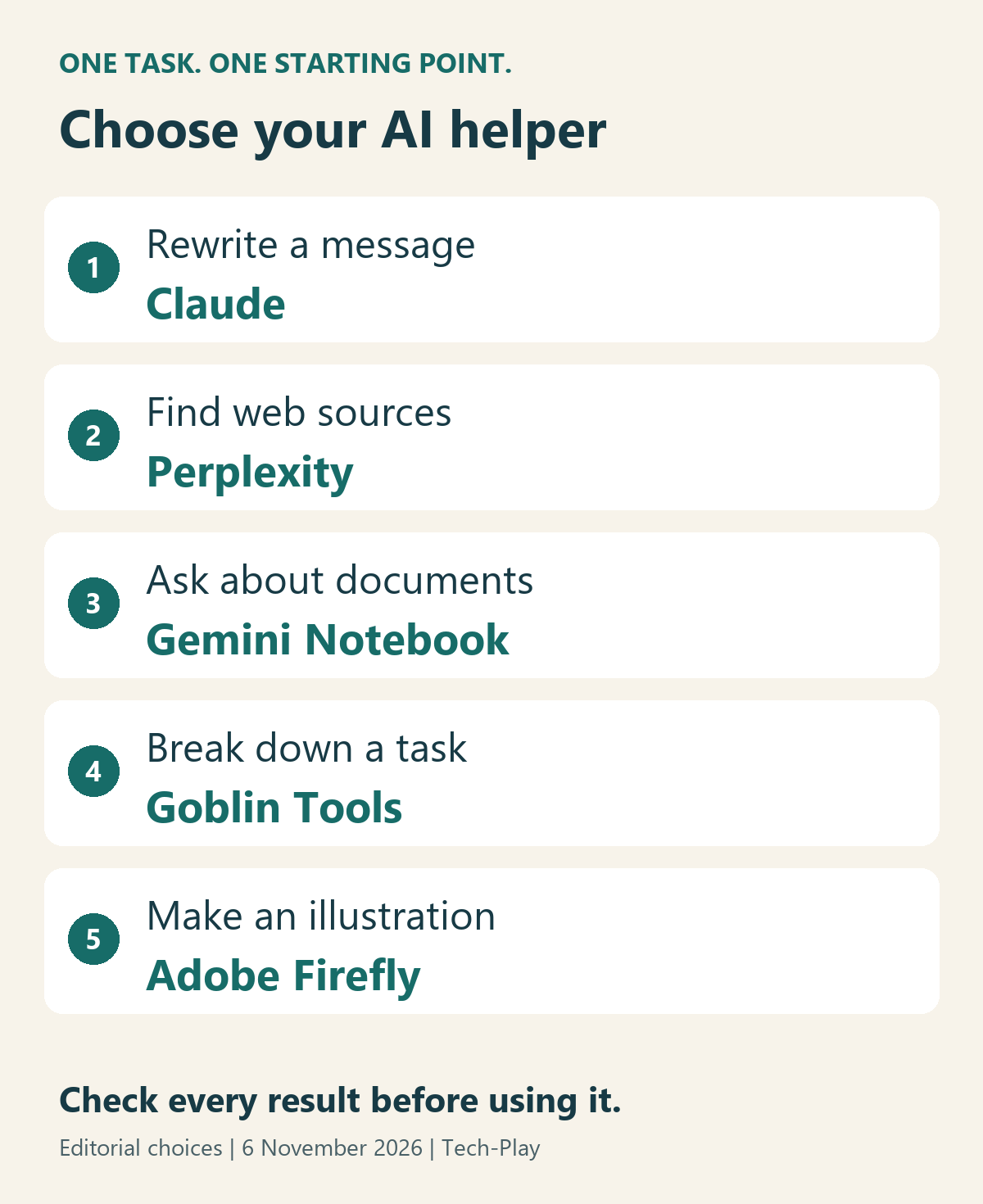
There is some overlap. A general assistant can suggest a checklist, for example. These pairings are editorial starting points, chosen to make each tool’s role clear rather than rank their intelligence.
Here, “free” means an ongoing free option for the task described, rather than a temporary paid-plan trial. Start in a browser and choose the free tier. If you encounter a payment screen, check whether you have selected a paid feature or an optional upgrade before continuing.
1. Claude: turn rough notes into a usable message
Use Claude when you know what you want to say but keep rewriting the same paragraph. A request to reschedule an appointment is a good starting task: you can check the facts yourself.
Open Claude and sign in or create an account. Supply sanitized notes, state the tone, and give a length limit. Ask for one version first so you have less to review.
Copy this example:
Turn these notes into a polite email of no more than 90 words. Keep every fact unchanged. Do not invent an excuse, a promise, a name or a reference number. Ask one clear question at the end. Notes: I booked a repair visit for Tuesday morning. I now need Thursday afternoon instead. Ask whether that change is possible. If information is missing, tell me after the draft.
Before sending, compare the message with your notes. Has it implied the change is confirmed, or promised that you will be home all afternoon? Correct those details and remove wording you would never use.
Free access and limits: Anthropic’s current plan comparison lists a free plan with five-hour and weekly usage limits. How quickly you reach a limit varies with the model, conversation length and files. This drafting task does not require paid scheduling or connected-app access. Check the supported locations list before signing up; access is not worldwide.
Skip it when: writing the request would take longer than writing the message. For a routine reply, save your finished version as a reusable template.
2. Perplexity: find sources for a practical question
Perplexity is a useful starting point when your question spans several web pages. Its answer engine provides cited responses. The links make an answer easier to investigate; they do not establish that every sentence is correct.
Open Perplexity and use basic search. Its getting-started guidance offers sign-up with an email or Google account. Include the details that determine the answer, such as your country, device and exact product version.
Copy and adapt this example:
Find the manufacturer’s official instructions for resetting my wireless headphones: [brand and exact model]. Distinguish a restart from a factory reset. Link the relevant support page, explain what a reset removes, and say if you cannot find instructions for this exact model. Do not substitute a similar model.
Replace the bracketed text before submitting. Open the manufacturer’s page and check the model name and steps before touching the controls. If the sources cover only a similar product, the task is still unresolved. A direct search on the manufacturer’s support site may be quicker.
Free access and limits: the Standard plan documentation includes basic searches, with much tighter access to Pro Search and file uploads. Advanced model access and image generation are excluded from the free plan. You do not need them for this example.
For a repeatable verification method, use our guide to checking AI answers before trusting them.
3. Gemini Notebook: ask questions about documents you supply
Choose Google’s Gemini Notebook when the answer should come from particular documents, such as a public appliance manual and its troubleshooting sheet. Google’s current support pages use this product name.
Sign in with your Google account, create a notebook and add the relevant sources. Keep the first notebook small. In chat, select the sources you want used and ask a narrow question. Google’s chat documentation explains how source citations let you jump to the supporting passage.
Copy this example after adding a manual:
Using only the selected manual, make a short checklist for cleaning the removable filter. Cite the passage supporting each step. Separate required safety precautions from cleaning steps. If the manual does not specify a cleaning frequency, say that it is not specified. Do not add general advice from elsewhere.
Read the cited safety instructions in the original before acting. A request to use only a manual is a useful constraint, but it is not a guarantee against omissions. If the manual is for another model or revision, replace it first.
Free access and limits: Google’s plan page lists free sign-up using a Gmail account, with 100 notebooks and 50 sources per notebook on Standard. Its usage guidance also describes compute-based limits, five-hour refreshes and a weekly ceiling. Do not assume older daily chat quotas still apply. Check Settings, then Usage, for your account’s remaining allowance.
Browser availability follows Google’s supported-country and age rules; mobile availability can differ. Work and school accounts may have separate access arrangements.
Choose this over web research when: you already have the documents that should answer the question. A concise notebook cannot compensate for missing or outdated source material.
4. Goblin Tools: break one overwhelming task into steps
If “sort out the spare room” is too vague to start, open Magic To Do. Add one task and use its breakdown control. The chilli setting indicates how much detail you want: higher settings ask for a finer breakdown, rather than a measured difficulty score.
Try this input:
Prepare the spare room for an overnight guest. Focus on clearing the bed, changing the bedding and making space for a bag. I have 30 minutes and no time to buy anything.
Treat that as a request for suggestions, not a schedule. Delete unnecessary steps, add anything specific to your home and pick the first action you can actually do. If a step is still vague, break that one down further.
Free access and limits: the developer’s explanation distinguishes the free website tools from paid mobile apps and optional Pro features. Basic browser use is the route recommended here. The developer also warns that AI output is guesswork requiring your judgment.
The privacy policy says AI requests send necessary input to a remote provider. Browser storage does not make the AI processing offline. Use “prepare for an appointment,” for example, rather than entering a private diagnosis or identifying details.
Skip it when: you already have a short, workable checklist. Planning is useful only if it helps you begin.
5. Adobe Firefly: make a simple illustration
Firefly suits a decorative invitation background or an image for a personal project. It is a poor choice for showing what a real product looks like or proving that an event happened.
Open Adobe Firefly and sign in with an Adobe ID. Choose an image-generation option available to your free account, then describe the subject, composition and style. Adobe’s text-to-image instructions cover the workflow.
Copy this example:
A friendly paper-cut illustration of a board-game evening: a tabletop with generic blank playing cards, colourful wooden tokens and two mugs. Wide landscape composition, warm cream background, teal and coral accents. Leave clear space in the upper half for invitation text added later. No people, no lettering, no logos, no recognizable commercial game.
Inspect the result before downloading it. Look for stray lettering, distorted objects and unwanted brand-like details. Add the date, venue and invitation text separately so those details remain accurate and easy to edit. If you need a genuine photograph, use your own photo or an appropriately licensed asset instead.
Free access and limits: Adobe’s generative-access guidance describes limited daily free generations on a selected set of models. It does not promise one fixed number for every free account. Check the allowance and model shown before generating; a free account does not include every option.
The Firefly FAQ confirms the Adobe ID requirement and regional restrictions, including unavailability in Russia, Belarus and China. It also lists other restricted territories. Check that page if access fails. Label an image as an AI illustration when sharing it in a context where its origin matters.
Check whether the tool earns a place in your routine
Use this copyable checklist on one recurring task. These are editorial decision criteria, not benchmark results.
- Define “finished.” Name the output: an email you can send, a source you can verify, or a checklist you can follow.
- Keep the input small. Supply only the necessary facts. Remove passwords, account numbers, private addresses and other people’s personal details. Use only documents you are permitted to upload.
- Count the whole job. Include sign-up, preparing the prompt, waiting, checking and fixing. Compare that effort with your usual method.
- Check the part that matters. Read the source, compare dates and names, or inspect the image. Do not accept an answer just because it is fluent.
- Set a stopping point. If a second attempt still needs substantial repair, try a direct search, an ordinary template or the task itself.
- Keep what worked. Save a sanitized prompt or finished checklist. You may need the reusable result more often than the AI tool.
If a free limit interrupts you, save your work and check the reset information. Paying for more access is a separate decision; first establish that the workflow is useful. Nothing in these examples requires connecting your inbox, granting access to your whole drive or enabling automatic purchases.
Start with the unfinished task in front of you. Try its matching tool, check the result, and keep it only if the complete process makes that task easier.