Smart TV setup is easier when you tackle one thing at a time: get the TV connected, make the controls comfortable, then add the apps and games you actually want. Start with a working picture and one streaming app. Leave extra accounts and gaming adjustments until that basic setup works.
This guide is for first-time owners, families sharing a screen, and anyone helping someone else get started. Menu names vary by model and software version, so use your TV’s own instructions when they differ from the examples below.
Smart TV, Android TV and Google TV: what do you have?
Check the model’s specifications or manual before following platform-specific instructions. “Smart TV” is the broad description; it does not identify which software your set uses.
Google explains that Google TV runs on Android TV OS. Devices described as Android TV can use that operating system without the Google TV interface. You may therefore see different home screens and menus even though both devices belong to the same software family. Google TV’s platform FAQ explains the distinction.
For this guide, choose the path that matches your screen:
- Built-in smart TV: follow the TV manufacturer’s first-run prompts.
- External Android TV or Google TV device: connect the device to the TV, then complete setup on its HDMI input.
- Console gaming: set up the console separately and switch to its HDMI input when you want to play.
Smart TV setup: get the essentials working
Before starting, have your Wi-Fi details, remote, account sign-in information and device instructions ready. For Android TV setup, Google’s checklist includes Wi-Fi and a Google Account; an external device also needs a suitable HDMI display and cable. Android TV setup requirements
1. Connect the device and choose its input
If Android TV is already built into the television, start the TV’s setup wizard. For an external Android TV device, Google’s instructions say to turn off the display, connect the HDMI cable, and connect the device to power. Turn on the TV, select the matching Source or Input, and follow the remote-pairing prompts. Android TV connection and remote instructions
Write down which HDMI socket you used. This small step gives anyone in the household a clear way back to the correct screen.
2. Follow the correct sign-in route
On Android TV, setup can use an Android phone’s Quick Start or the TV remote. Choose the remote option if you prefer to enter the details directly. Android TV sign-in options
Google TV currently offers different phone setup experiences depending on the model, plus manual setup. Follow the QR code and prompts actually displayed; do not assume every device needs the same phone app. If phone setup fails, look for Set up on TV instead or Manual setup. Third-party remote-pairing instructions can also differ. Google TV setup options
3. Test one thing before adding more
Our suggested first test is simple: open one service you use, play a familiar programme, and check the picture, volume, pause button and subtitles. Then return to the home screen and practise finding that app again.
Keep a short household note with the input name and the steps to open the main app. Avoid putting account passwords on that note.
Make the screen comfortable for everyone
Set up accessibility with the person who will use it. On Google TV, look under Settings → Accessibility for TalkBack, captions, high-contrast text and Switch Access. Google notes that system caption preferences do not apply to every app, so test captions inside your usual streaming services too. Google TV accessibility settings
For someone who needs spoken guidance during Google TV onboarding, Google’s setup guide documents holding Back and Down for three seconds to turn on TalkBack. Follow the device’s instructions if its remote differs. TalkBack during setup
Ask the viewer to try the remote from their normal seat. Can they read the menu, hear the dialogue, find Home and Back, and reopen a programme? Treat those answers as the practical completion test.
Set up children’s viewing separately
On supported Google TV devices and in supported regions, a kids profile lets parents choose available apps, set screen-time limits and bedtime, and require adult verification to leave the profile using Kids lock. Start from the profile selector and look for Add account → Add a kid. Google TV parental controls
There is an important limit: Google’s movie and TV content restrictions do not cover recommendations or search results supplied directly by apps. Review each app’s own controls as well. A TV profile should not be your only check. Scope of Google’s restrictions
Choose how you want to play games
Use this checklist to choose the next setup task. It summarises the three routes explained below.
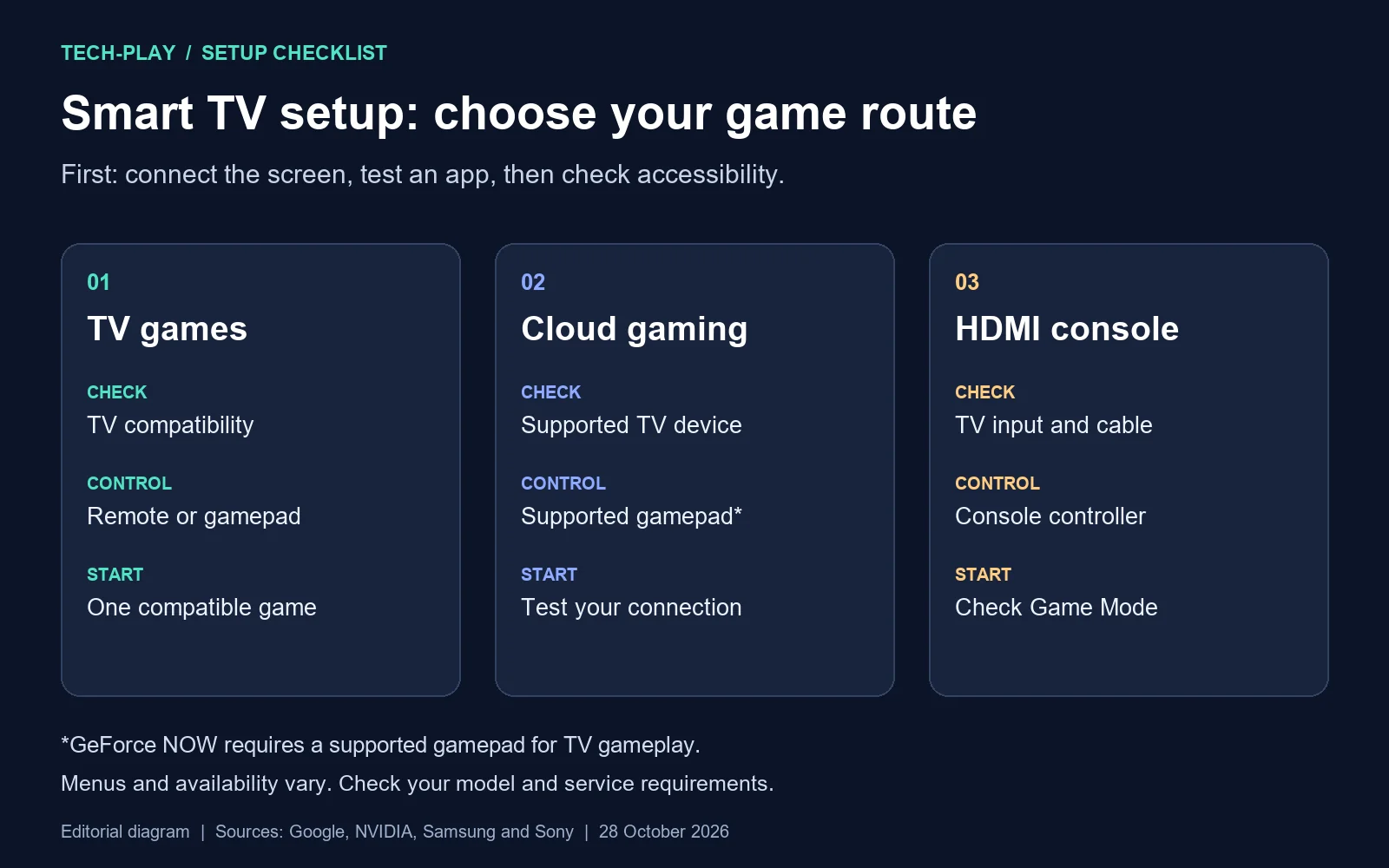
Android TV games installed on the device
Google documents Android TV games that work with a remote or a gamepad. Controls depend on the game, so check its requirements before choosing it. The official instructions describe finding titles through Play Games; use the game discovery options available on your device. Playing games on Android TV
A game available on your phone is not automatically compatible with Android TV. Google’s compatibility check is to find the game in Google Play on a computer and inspect the device selector: a dimmed Android TV device indicates that the game will not work on it. Check Android TV game compatibility
For ideas to investigate next, see Tech-Play’s Android TV games you can play without a controller. Check each game’s current listing before installing.
Cloud gaming on a supported TV device
Check the service’s current device requirements before subscribing. As one documented example, NVIDIA’s Android TV requirements for GeForce NOW list Android 7.0 or later and OpenGL ES 2.0 support or higher. Its connection requirements are 15 Mbps for 720p at up to 60 FPS or 25 Mbps for 1080p at 60 FPS, with latency below 80 ms to an NVIDIA data centre. NVIDIA recommends Ethernet or 5 GHz Wi-Fi and requires a supported gamepad for TV gameplay. These figures describe this service’s Android TV route, not every cloud service or TV. GeForce NOW requirements
Test the connection where the TV will actually sit. For further reading, Tech-Play’s Android TV game-streaming comparison discusses service choices. Confirm current compatibility directly with the provider before paying.
Console games through HDMI
For a connected console, check your TV’s gaming settings. Samsung’s support guide explains that Game Mode reduces input lag and that Input Signal Plus expands the supported HDMI input signal range. Those are Samsung examples, with model-specific menus; consult your own manual for the equivalent settings. The cited Samsung guide was last updated in December 2022. Samsung’s gaming setup guide
On PS5, use Settings → Screen and Video → Video Output to inspect the connected display’s capabilities. Sony documents 120 Hz output for compatible screens and games, VRR for supported displays, and ALLM for automatic low-latency switching. HDR can be set to On When Supported, followed by the console’s HDR adjustment. These options depend on compatible equipment and content; turning on a setting does not make every game run at 120 FPS. PS5 video output settings
Fix the simplest problems first
If a connected PS5 has no picture, Sony recommends checking the HDMI connection and selected input, trying another port or cable, and checking the display’s firmware. Temporarily connecting the console directly to the TV can help isolate an intermediary device such as a receiver. For sound problems, check that the console’s output is set to an HDMI device. Sony’s picture and sound troubleshooting
For missing Android TV games, check device compatibility before trying another installation method. For failed Google TV phone onboarding, try the documented manual setup route. Changing one thing at a time makes it easier to see what solved the problem.
Your final check is a household walkthrough: open the main app, enable captions if needed, switch to the gaming input, then return to normal viewing. A successful setup is one the people using it can repeat.
Sources
Primary documentation checked on 28 October 2026. Most support pages do not display a publication or update date; menu paths and service requirements can change.
- Google TV: platform FAQ
- Google: set up Android TV and its remote
- Google: set up Google TV and its remote
- Google: Google TV accessibility
- Google: Google TV parental controls
- Google: play games on Android TV
- Google: find games and check device compatibility
- NVIDIA: GeForce NOW system requirements
- Samsung: UHD gaming settings — updated 15 December 2022; used for the named Samsung settings only.
- Sony: PS5 resolution and video output
- Sony: PS5 picture and sound troubleshooting