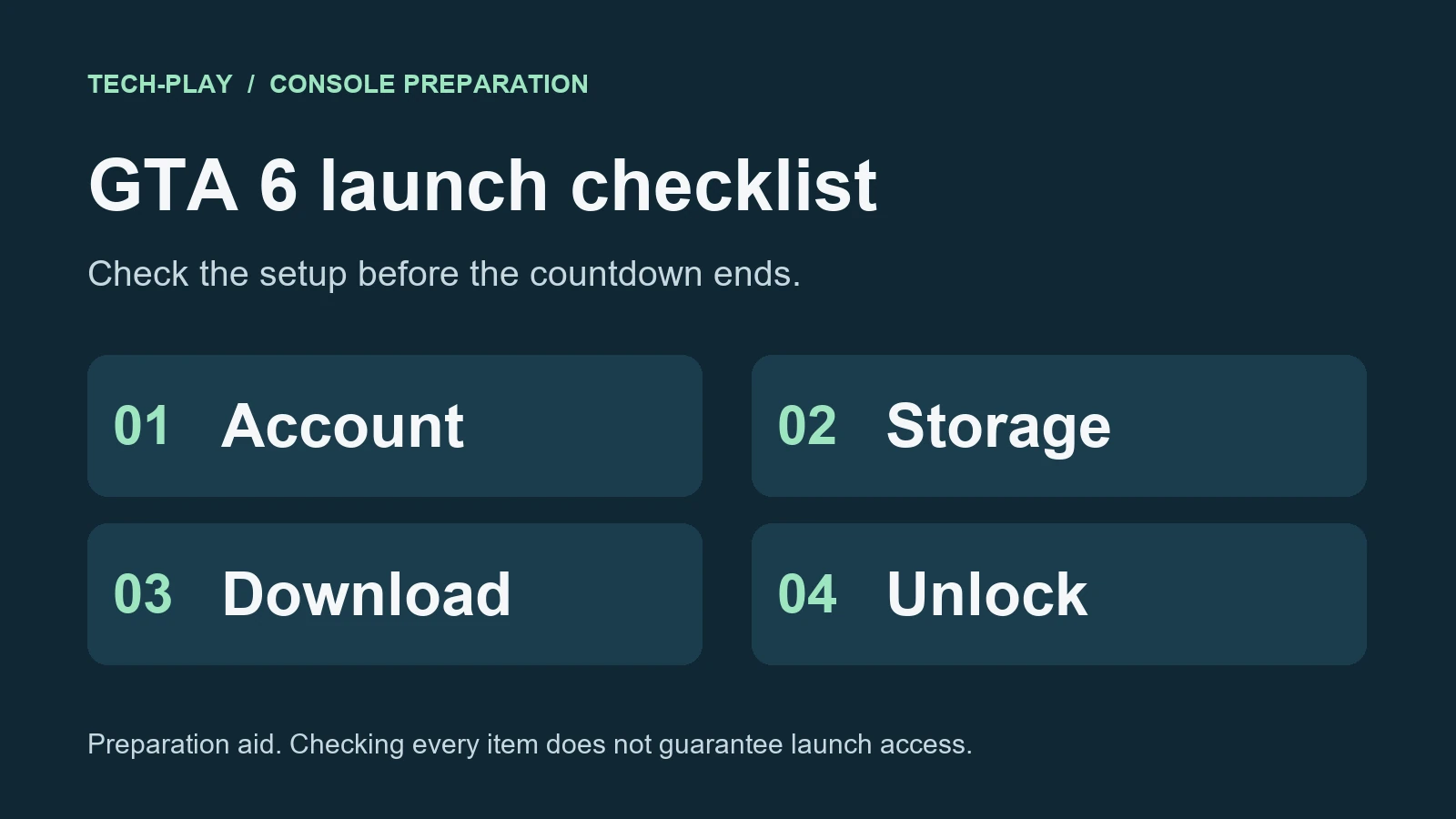
Before GTA 6 launches, check four things on your console: a valid purchase, enough space on suitable storage, a finished download and any available updates. A game icon alone does not tell you whether those checks are complete. Use the interactive GTA 6 launch checklist below, then follow the steps for anything you still need to do.
Last updated: November 11, 2026. This guide covers local installation on PS5 and Xbox Series X|S. It is based on official documentation, not hands-on testing of the unreleased game.
GTA 6 launch: the confirmed dates to check
Rockstar’s regional release-time FAQ currently gives these times:
- Console release: midnight local time on November 19, 2026, for PS5 and Xbox Series X|S in all regions.
- PS5 digital preload: opened at midnight local time on November 10.
- Xbox Series X|S digital preload: opened worldwide at 00:00 GMT on November 10.
Preloading downloads the files ahead of release; it does not grant early access. Check your purchase’s countdown again close to launch. For regional examples, see Tech-Play’s GTA 6 release times worldwide.
Your interactive GTA 6 launch checklist
Tick each item only after checking it on the console. The tool needs no login, scripts or connection to your gaming account. It cannot inspect your hardware, purchase or download. There is no server-side progress saving; use the copyable version below if you want a lasting record.
1. Confirm the console and the purchase account
Rockstar’s GTA VI page lists PS5 and Xbox Series X|S. Use the version for the console you intend to play on, and sign in to the account that purchased it or redeemed its code.
Check the order itself before spending time troubleshooting an empty library. On Xbox, Microsoft’s pre-order guidance explains that payment timing depends on the payment method. A failed collection can lead to cancellation. Review the order status and any payment notice rather than buying another copy immediately.
If you bought a box, check its contents and listing. PlayStation’s GTA VI support page says its code-in-box version contains a download code and no disc. Redeem that code on the intended account; contact the retailer if it is missing or unreadable. A boxed purchase does not necessarily spare you a large download.
This checklist does not require an edition upgrade or a new subscription. Check the current local store listing before making any additional purchase; prices, taxes and offers vary by market.
2. Free space on storage you can play from
PlayStation’s UK GTA VI support page asks PS5 players to have 212 GB of storage available. Treat that as a planning reference. Follow the requirement shown by your console’s installer and leave additional room where possible for updates. This guide does not claim that 212 GB is the exact download size on every console.
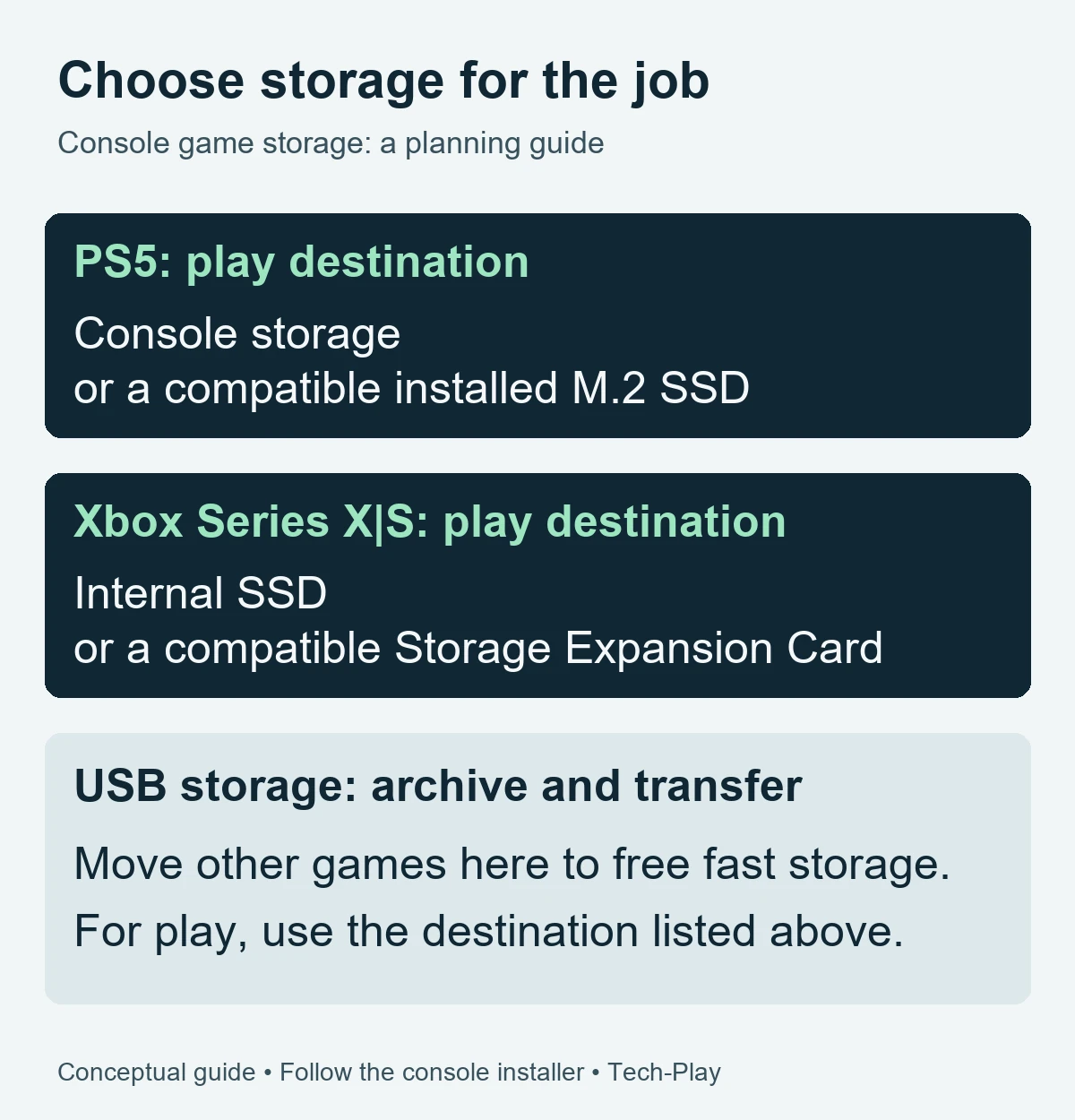
Check both the free space and the destination. An empty external drive is useful only if it suits the job:
- PS5: use console storage or a compatible installed M.2 SSD for playing PS5 games. USB extended storage can hold PS5 games, but they must be copied back before play. Sony explains the distinction in its PS5 storage guide.
- Xbox Series X|S: plan to install on the internal SSD or a compatible Storage Expansion Card. Microsoft’s Xbox storage primer distinguishes storage for playing next-generation games from USB storage used to keep and transfer them.
Start by moving or uninstalling games you do not need immediately. On PS5, open Settings > Storage to review usage. Be deliberate about what you remove: game installations, saved progress and captures are different things. Do not delete saves or format a drive simply to clear an installation error.
3. Start the download and check the actual queue
PS5: check the pre-order’s download setting
Sony’s pre-order auto-download instructions give this route:
- Open Game Library and select your pre-ordered game.
- Select its countdown timer.
- Make sure the checkbox beside the game content is selected for automatic downloading.
For downloading in Rest Mode, enable Settings > System > Power Saving > Features Available in Rest Mode > Stay Connected to the Internet. Then inspect Downloads/Uploads to confirm the GTA VI download is progressing. These settings and the queue check are covered by PlayStation’s GTA VI launch preparation instructions.
Xbox Series X|S: verify entitlement and installation
Sign in with the purchasing account, open the game’s Store or library entry and look for the installation option. If the entry offers only a purchase, check your account and order history before paying again. Microsoft’s pre-order support guide covers order status and missing purchases.
Open your console’s download queue and check what is actually installing. Confirm that the main game installation finishes; do not use the presence of its tile as your completion check.
Allow for download time and data limits
Check your broadband allowance before starting a large download, especially on a mobile hotspot. Use the console’s current queue estimate to plan your evening. Advertised broadband speed is not a promise of download speed, and installation or later updates can add more waiting time.
If possible, finish the download well before the unlock time. That gives you time to resolve an account or storage problem without deleting and downloading the whole game again on launch night.
4. Check updates and your first-session setup
Install available console software updates before your planned session. On Xbox, the route Profile & system > Settings > System > Updates is documented in 2K’s console troubleshooting guide. On PS5, use Settings > System > System Software > System Software Update and Settings, as described in Sony’s GTA VI support page linked above.
Check for available game updates again near launch. No particular day-one patch size is assumed here, and this checklist cannot guarantee that a further update will not appear.
Charge or power your controller, test the display and audio, and check that you can sign in normally. Once the game opens, review the settings it actually offers for subtitles, controls and accessibility before beginning. This is a preparation suggestion, not a claim about unverified GTA VI options.
If something fails, check the cause before reinstalling
- The game is missing: confirm the purchasing account, order status and code redemption first.
- The download will not move: check free space, your connection and the queue. Sony recommends pausing and resuming a stalled GTA VI download. Try that before cancelling a large transfer.
- The installed game remains locked: check the purchase countdown and release date. Completing a preload does not move the release forward.
- An error persists: record the exact message and error code, then use the relevant platform support route. For gameplay, patch or bug questions, Sony directs players to Rockstar Support.
Use official stores and support pages for downloads. Tech-Play’s safe game download guide explains how to assess suspicious download offers. A third-party “early unlock” installer is not part of this preparation process.
Copyable launch-night checklist
Copy this into your notes and replace each empty box after checking the item:
[ ] PS5 or Xbox Series X|S ready
[ ] Correct account; valid order or redeemed game code
[ ] Suitable install destination; requested free space available
[ ] Internet data allowance and download time checked
[ ] Main game installation finished; queue inspected
[ ] Console updated; available game updates checked
[ ] Purchase countdown or release date checked
[ ] Controller, display and audio ready
GTA 6 launch checklist FAQ
Does preloading let me play GTA 6 early?
No. Downloading ahead of release prepares the files. Rockstar’s current console release guidance remains midnight local time on November 19, 2026; check your own purchase countdown close to that date.
Do I need to buy an SSD for GTA 6?
Only if your existing suitable storage cannot accommodate the installer and you cannot free enough room. Check the destination and available space before shopping. A USB drive and a console-compatible storage expansion do different jobs.
Will ticking every box guarantee I can play at launch?
No. The boxes are a record of your checks. They cannot verify your license, detect a new update or rule out a service problem. Reopen the console’s queue and purchase entry before your session.
Can I keep the checklist without an account?
Yes. The copyable version above works in any notes app or on paper. The interactive boxes work without a Tech-Play or gaming-account login, and the tool does not send their state to a server.